
Three short routines, about 5 minutes in total. Your company stays the owner of every account. The agency gets working access to the ad account, pixel, Facebook Page and Instagram in Meta, Publish rights in your Tag Manager container and the Editor role in your GA4 property. You can remove that access at any time on the same screens.
Have these ready
- The Business ID your agency sent you (a long number) for Meta.
- The email address your agency sent you for Google Tag Manager and GA4.
- Your own admin access: full control of your Meta business portfolio, Administrator in Tag Manager and in GA4. Only people with these rights can add partners and users.
Screenshots come from a real account; names, IDs and emails on them are hidden with grey blocks. Your screens show your own names.
1. Meta Business: add the agency as a partner
The partner route shares your assets with the agency's business portfolio. The agency then gives its own team members access, and your list of people stays as it is. You need the agency's Business ID for this route.
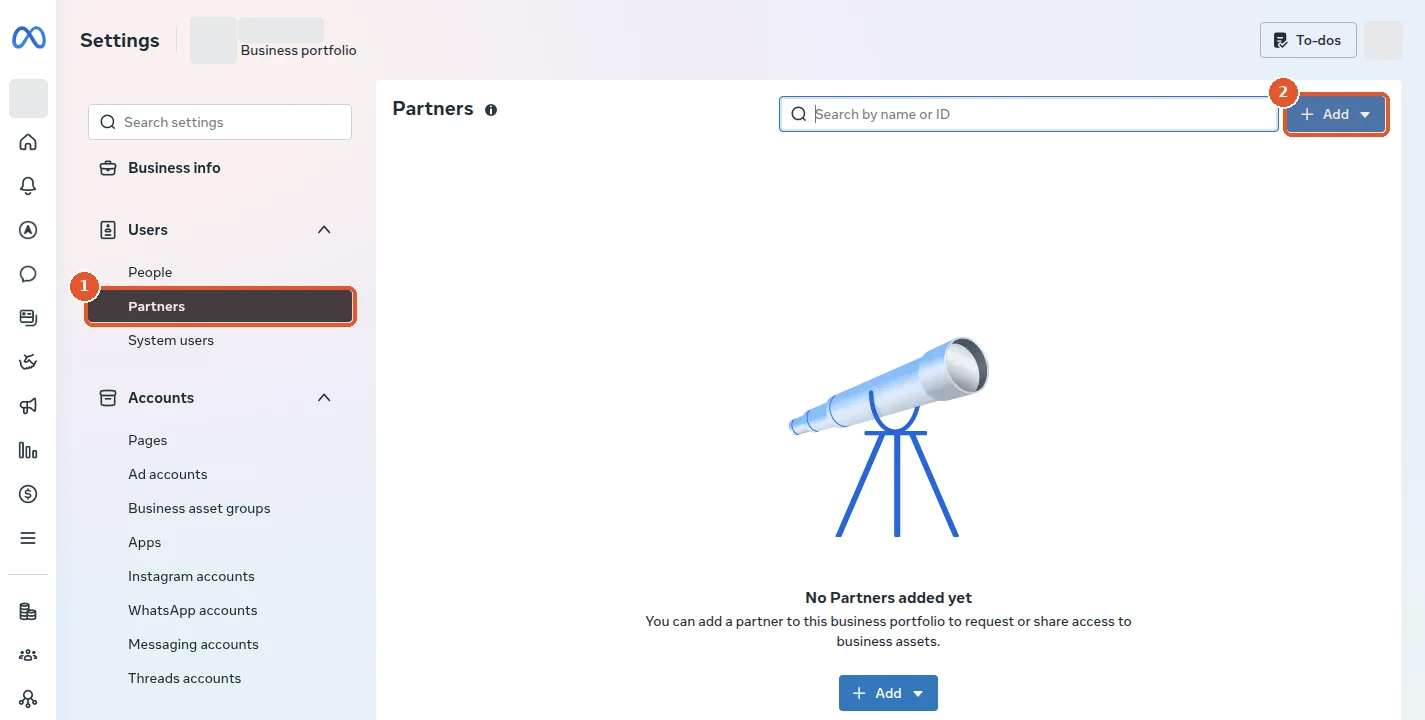
1Open Partners and click Add
In Meta Business Suite go to Settings → Users → Partners. If you manage several business portfolios, pick the one that owns your ad account and Page. Click Add.
Open business.facebook.com/latest/settings/partners
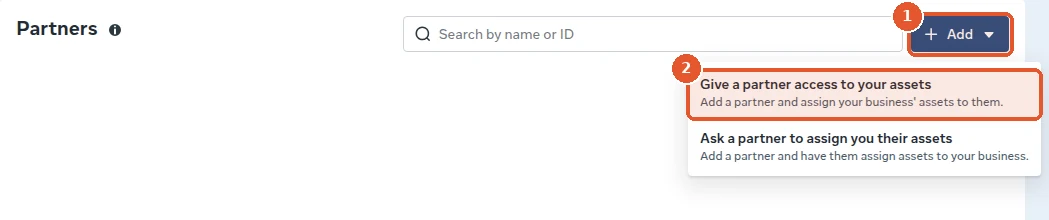
2Choose Give a partner access to your assets
The Add menu has two options. Choose the first one, Give a partner access to your assets.
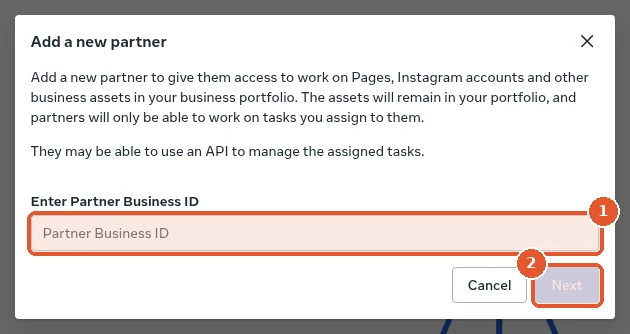
3Paste the Business ID your agency sent you
In the Add a new partner window paste the number into Enter Partner Business ID and click Next.
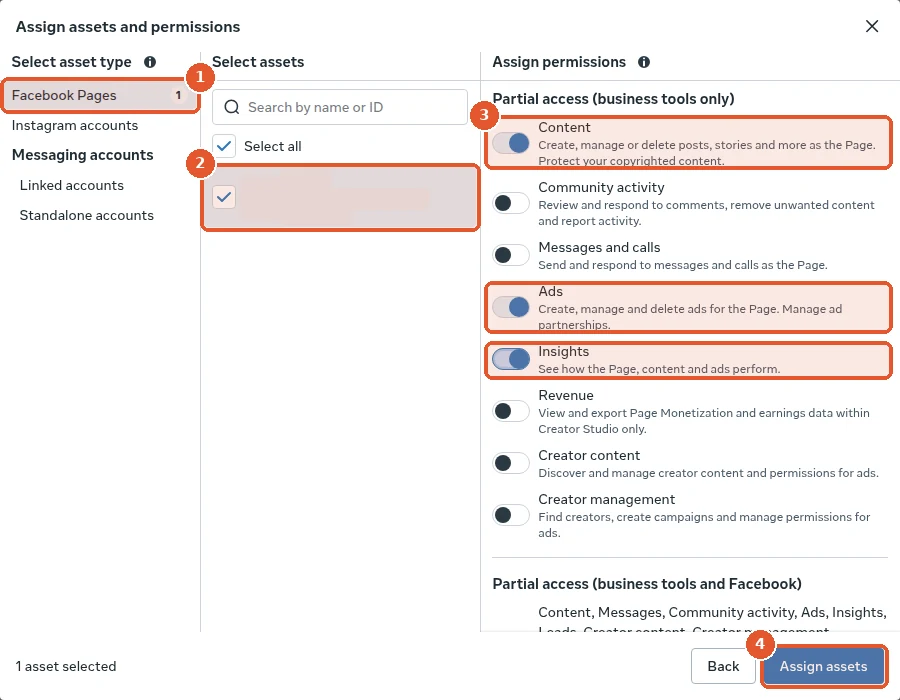
4Facebook Pages: tick your Page and switch on Content, Ads, Insights
The Assign assets and permissions window opens. On the left pick Facebook Pages, tick your Page in the middle and switch on Content, Ads and Insights on the right. The left column lists only the asset types your business portfolio has.
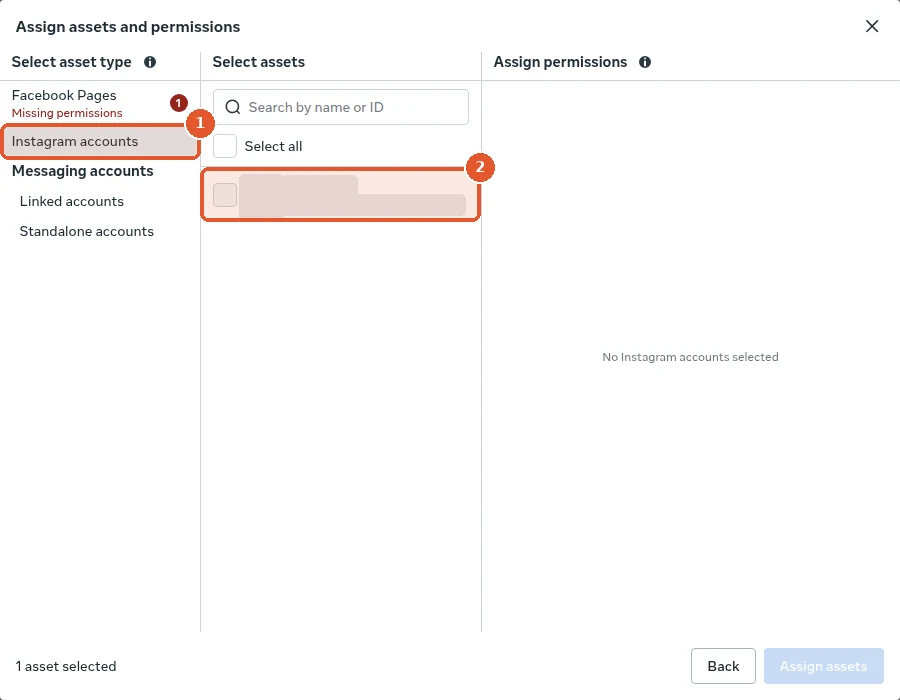
5Instagram accounts: tick your account
Switch to Instagram accounts and tick your account. Meta gives it the permissions of the linked Facebook Page, so there is nothing extra to switch on here.
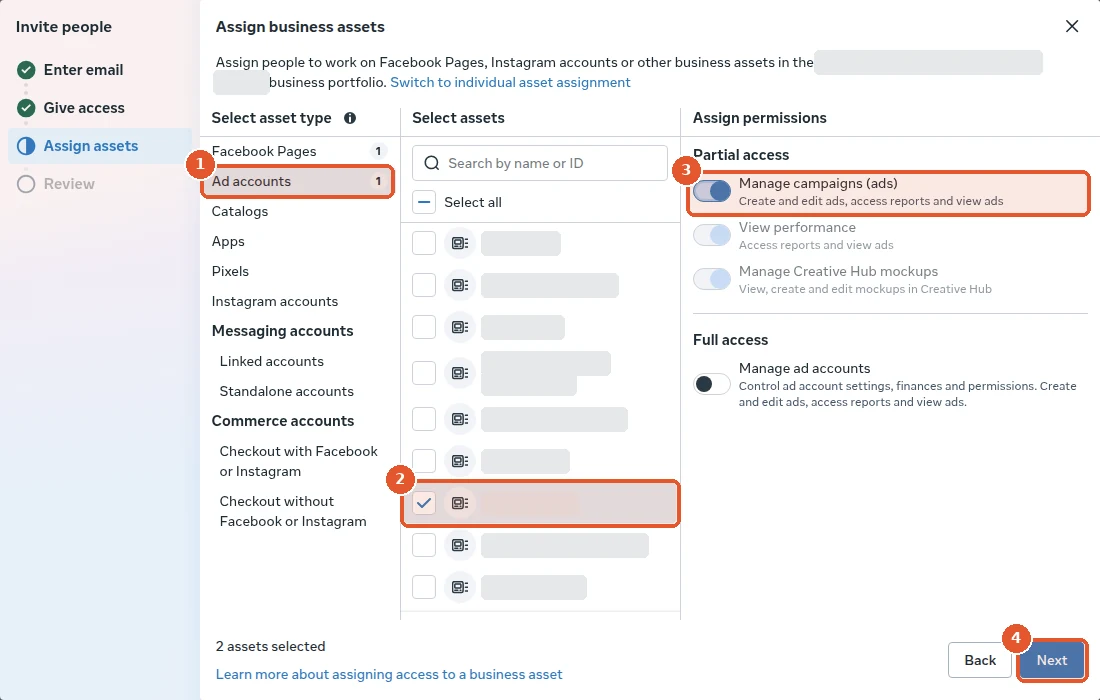
6Ad account and pixel, then Assign assets
Open Ad accounts, tick your ad account and switch on the tasks your agency asked for, usually Manage campaigns (ads). Your Meta pixel sits under Pixels (some accounts call it Datasets): tick it as well. Click Assign assets. The agency sees your business in its own Meta settings and gives access to its team.
Alternative: invite a person by email
Use this route when your agency asks for it, for example when it has no business portfolio of its own. The person joins your business portfolio and sees only the assets you assign.
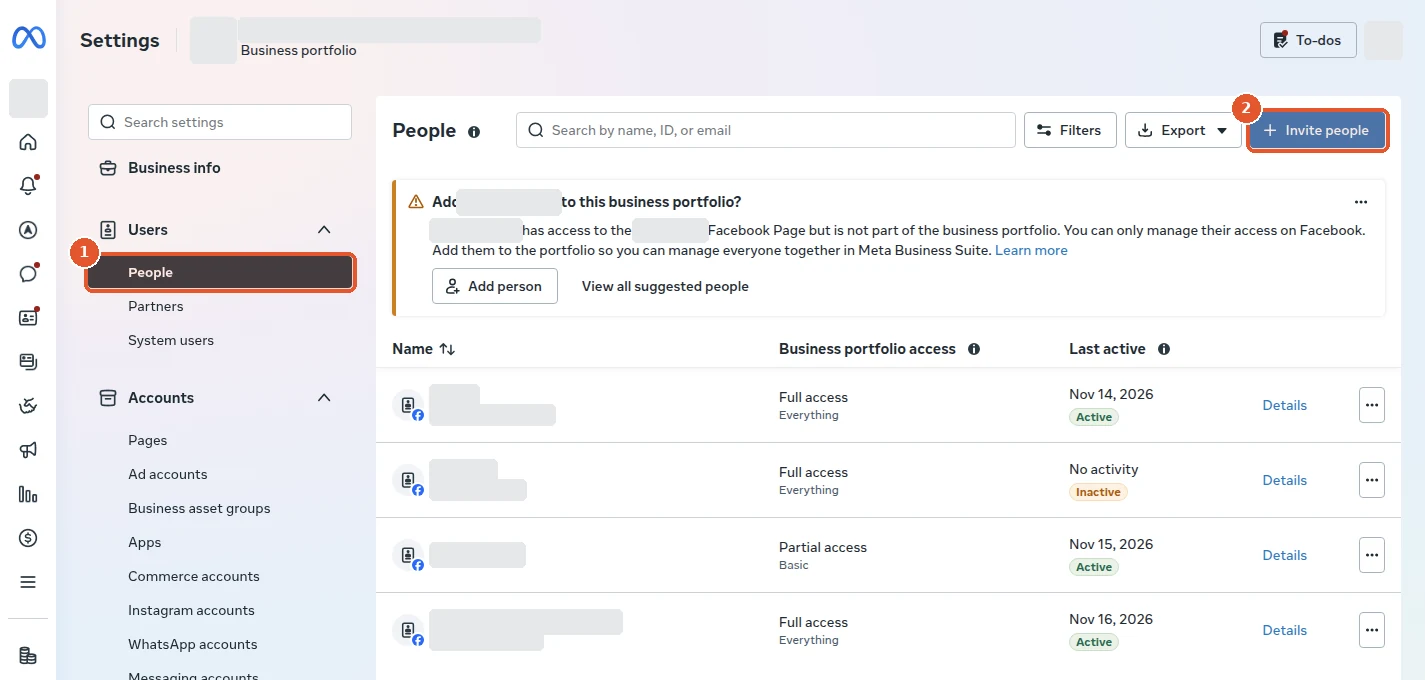
1Open People and click Invite people
Go to Settings → Users → People and click Invite people.
Open business.facebook.com/latest/settings/business_users
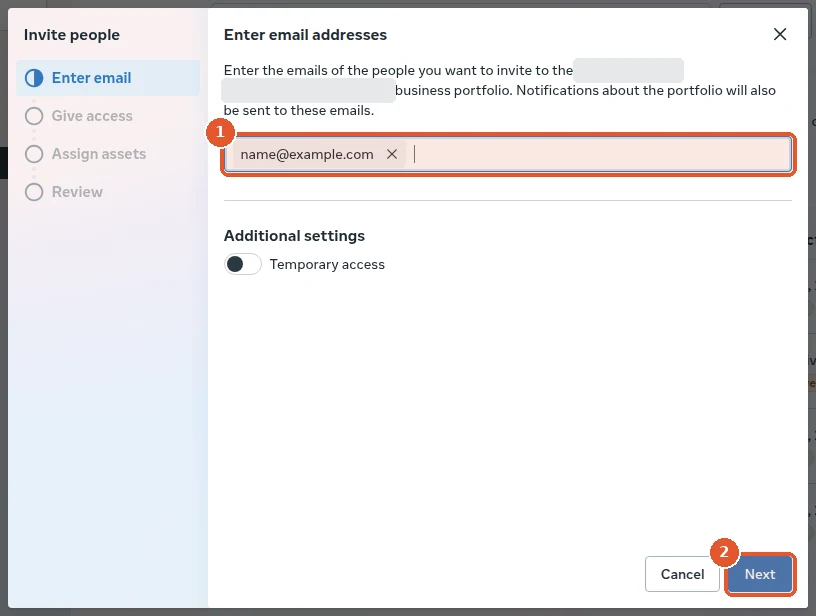
2Enter the email your agency sent you
Type the email address your agency sent you and click Next.
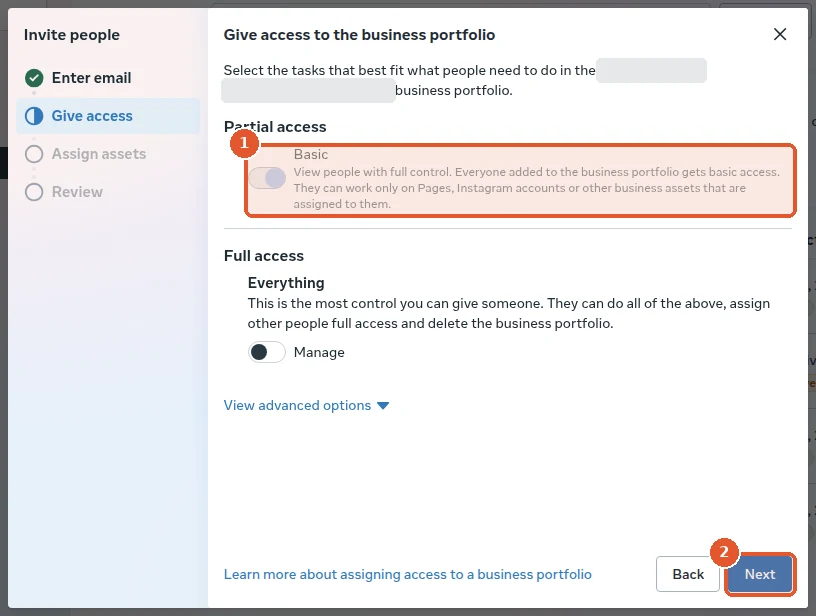
3Keep Partial access and click Next
On Give access leave Partial access (Basic), which is on by default, and click Next. Full access lets a person manage everyone in your business portfolio, so keep it for your own team.
4Facebook Pages: tick your Page and switch on its tasks
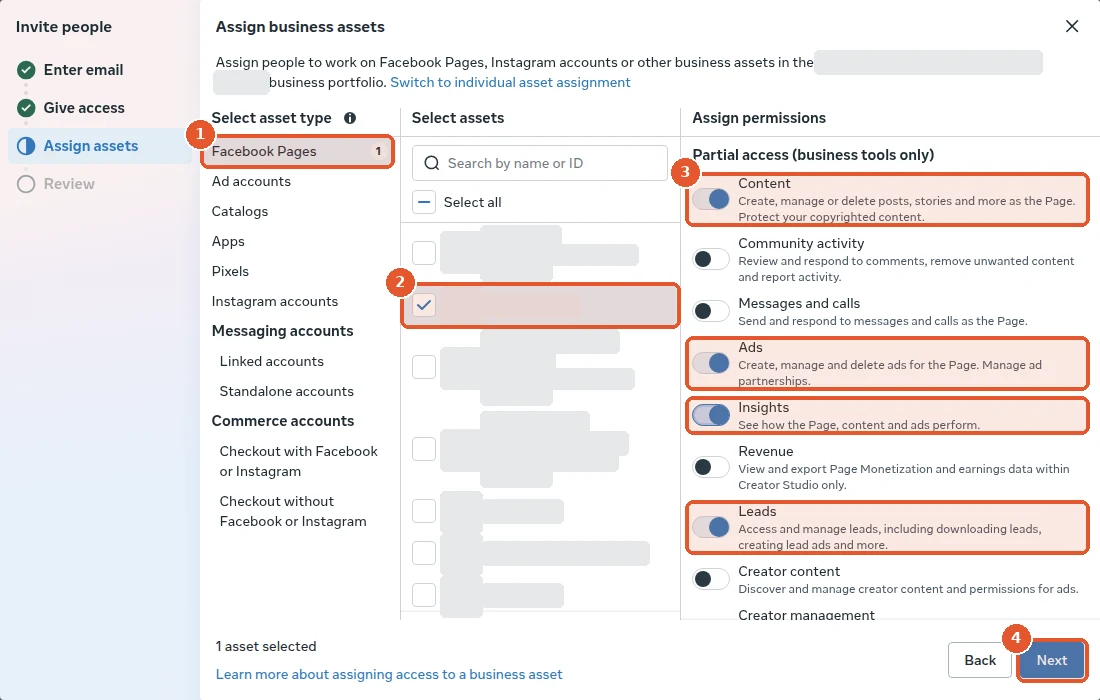
On Assign assets pick Facebook Pages, tick your Page and switch on Content, Ads, Insights and, for lead forms, Leads.
5Ad account, pixel, Instagram, then send the invite
Pick Ad accounts, tick your ad account and switch on Manage campaigns (ads). Tick your pixel under Pixels and your account under Instagram accounts the same way. Click Next, check the summary and send the invite. The person accepts it from their email.
2. Google Tag Manager: Publish rights for one container
Publish lets the agency add and edit tags and put a new version live. Keep yourself as the Administrator of the account.
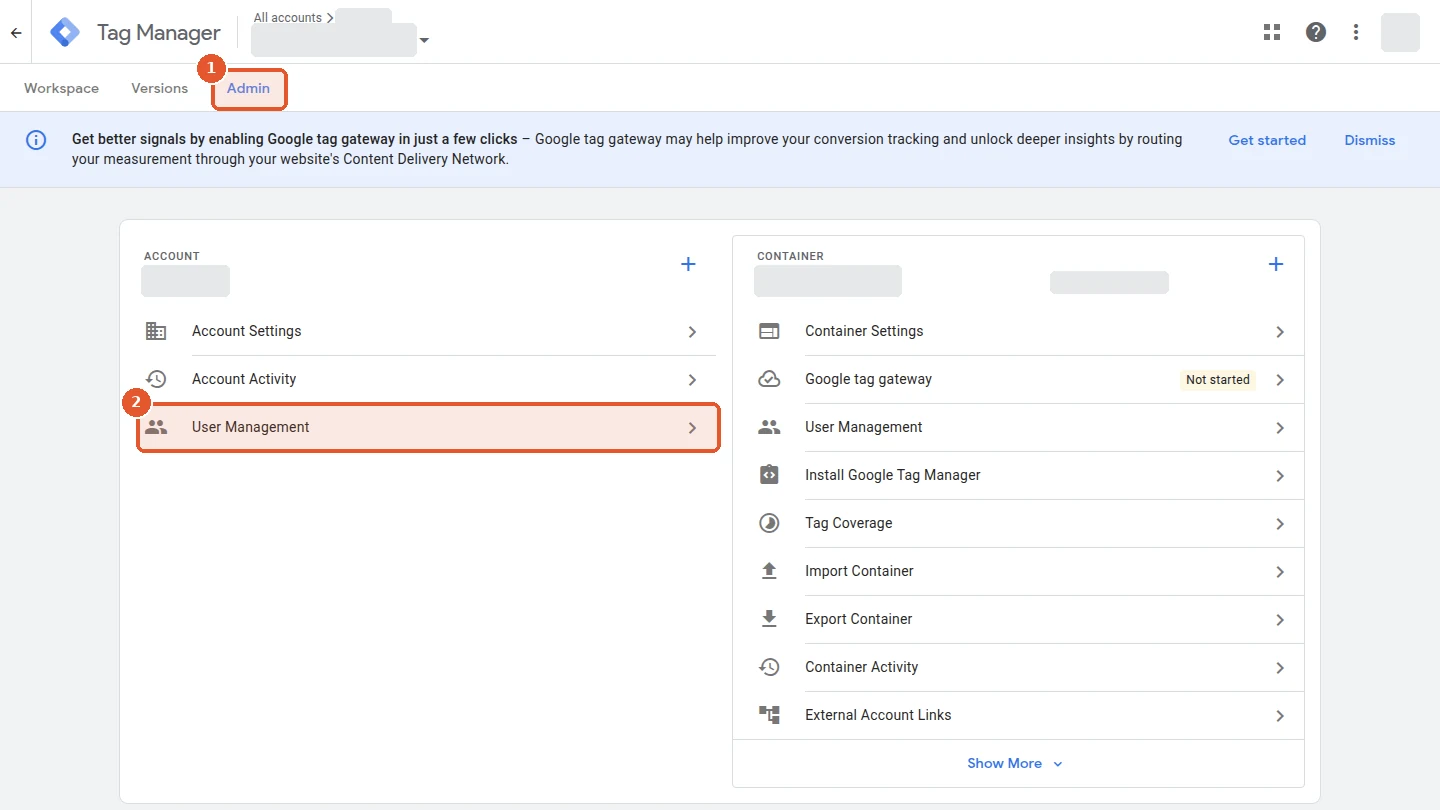
1Open Admin and User Management in the Account column
Open your Tag Manager account, click Admin and then User Management in the Account column. This screen sets the account and container permissions in one form.
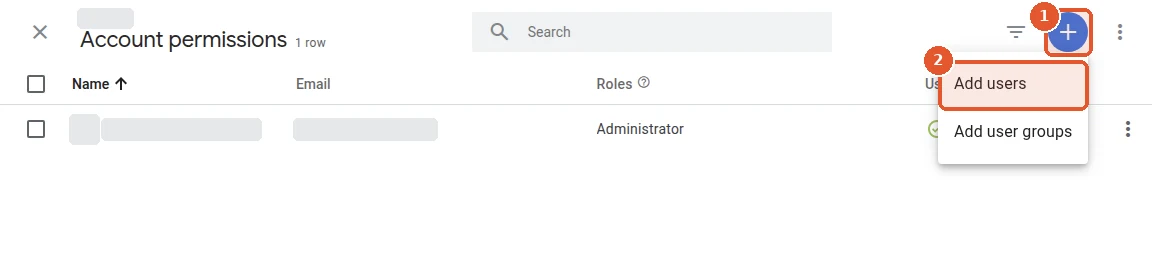
2Click + and choose Add users
Click the blue + in the top right corner and choose Add users.
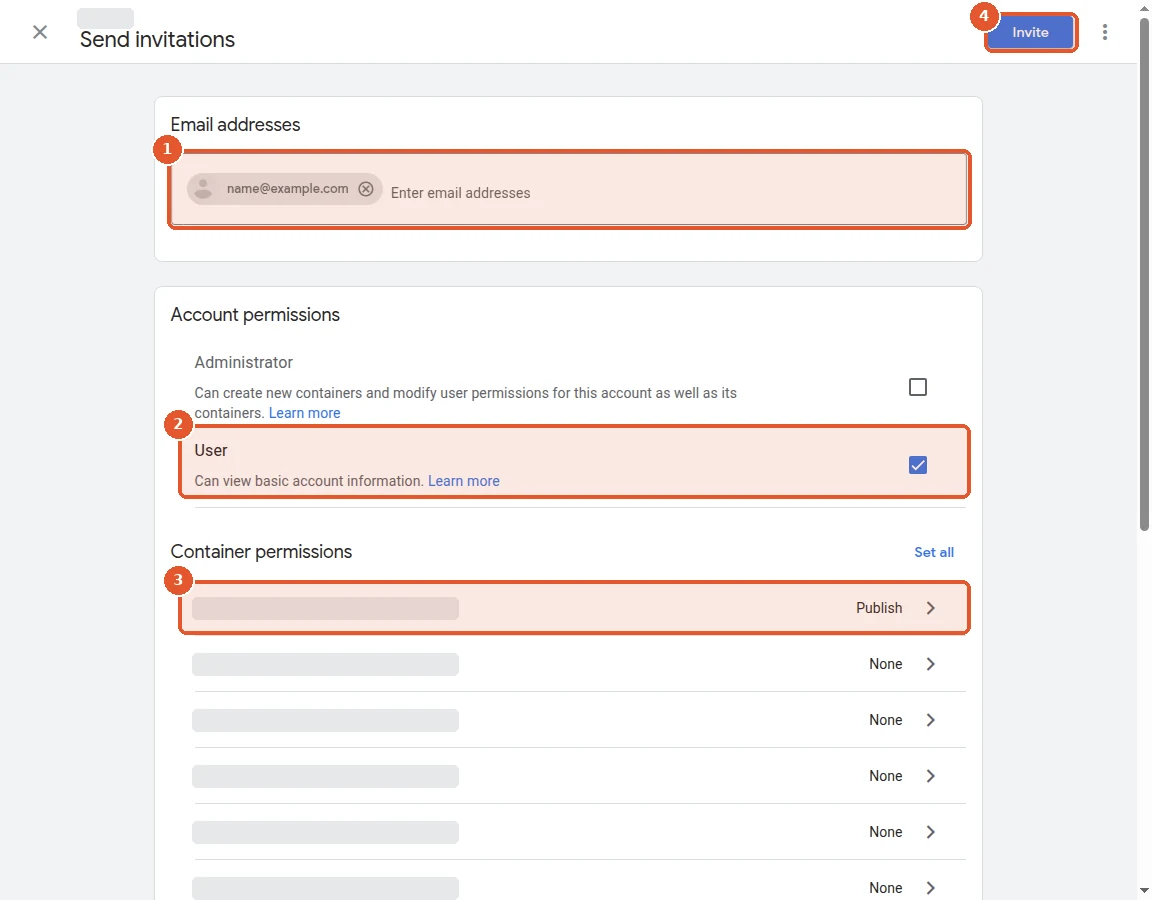
3Enter the agency email and keep User on the account
In Send invitations type the email address your agency sent you. Under Account permissions leave User. Under Container permissions click the row of the container that runs on your website.
4Tick Publish, click Done, then Invite
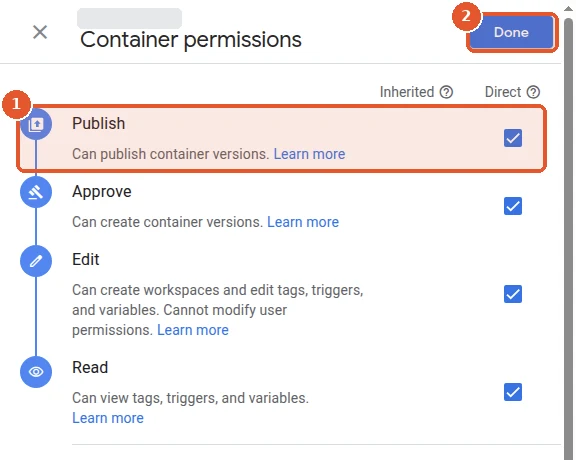
In the Container permissions panel tick Publish; Approve, Edit and Read are ticked with it. Click Done, then Invite at the top of the form.
3. Google Analytics 4: Editor role in your property
Editor lets the agency set up events, key events and links in the property. User management stays with your Administrators.
1Open Admin and Property access management
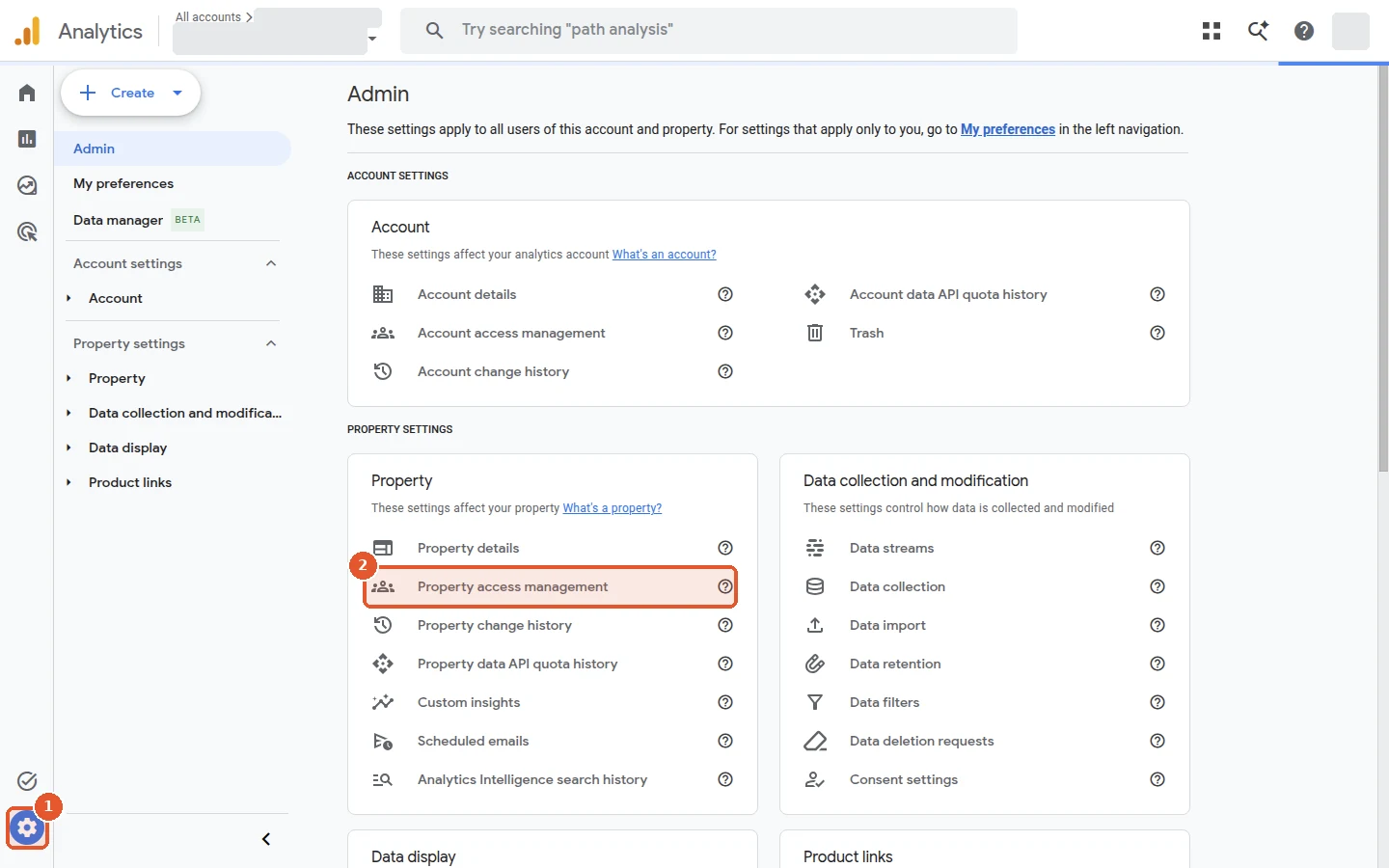
Open your property and click Admin (the gear at the bottom left). Under Property settings open Property access management.
Open analytics.google.com/analytics/web/
2Click + and choose Add users
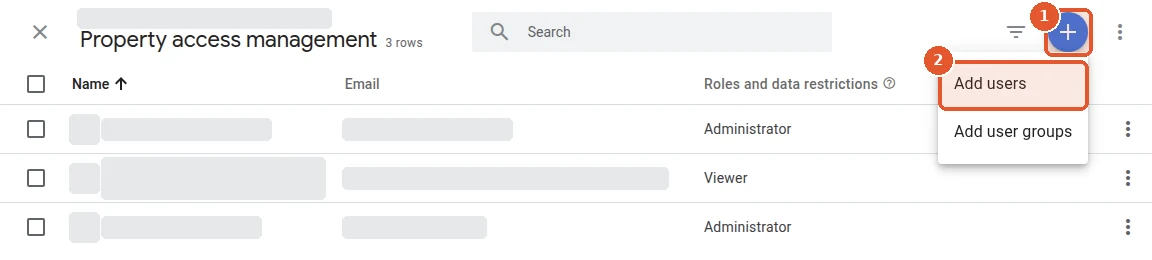
Click the blue + in the top right corner and choose Add users.
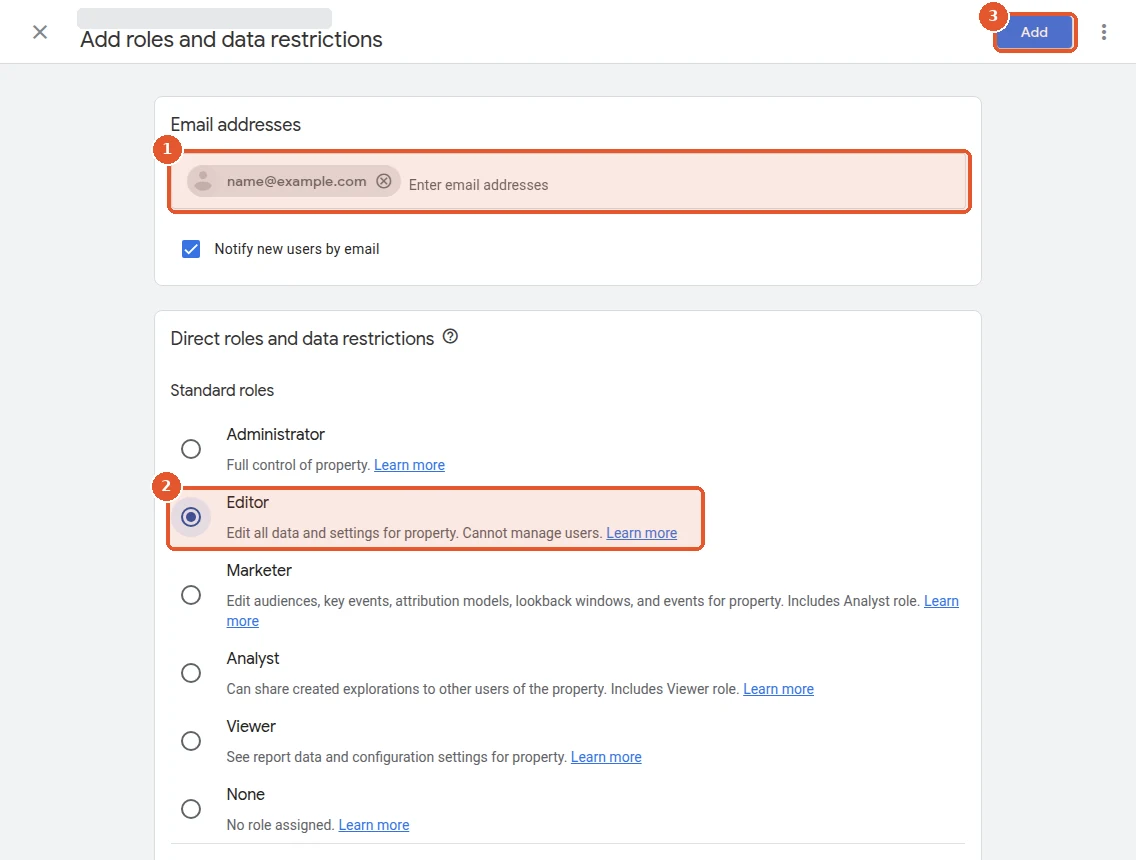
3Enter the agency email, choose Editor, add
In Add roles and data restrictions type the email address your agency sent you and keep Notify new users by email ticked. Under Standard roles choose Editor and click Add in the top right corner.
What exactly you give, and what stays with you
The table follows the official Meta and Google help pages linked in the last column.
| Where | The agency can | Stays with you | Source |
|---|---|---|---|
| Meta, partner access | Work with the assets you assigned, at the access level you chose: full control or selected tasks. | Sharing your assets with other companies: only the business that owns an asset can share it. Adding partners: only people with full control of your business portfolio. | Meta Business Help |
| Meta ad account, partial access | Run campaigns with the tasks you switched on. | Payment methods: Meta lets only admins of the ad account add or edit a payment method. | Meta Business Help |
| Tag Manager, Publish + User | Create workspaces and versions, edit tags and publish them in this container. | Creating containers and changing user permissions: these belong to the account Administrator. Google recommends that someone in your organization manages the account. | Tag Manager Help |
| GA4, Editor | Full control of settings at the property level. | Managing users: Editors can't manage users; roles are assigned by an Administrator. You can also hide cost and revenue metrics with data restrictions. | Analytics Help |
When you are done, reply to your agency
- Meta: the name of the business portfolio you shared from and which assets you ticked.
- Tag Manager: the name of the container.
- GA4: the name of the property.
The agency checks that the access works and tells you if a step needs a fix. To remove access later, open the same screens, select the partner or user and remove it.
FAQ
Is it safe to give an agency access to my Meta ad account?
Your business stays the owner of the ad account, Page, pixel and Instagram account. With partner access you choose the assets and the level of access, only the owning business can share an asset with another company, and you can remove the partner later in Settings → Users → Partners.
What is the difference between Partners and People in Meta Business?
Partners share your assets with the agency's business portfolio, and the agency gives access to its own team. People adds a specific person to your business portfolio by email, and you manage that person yourself.
Which permission does an agency need in Google Tag Manager?
Publish on the container that runs on your site and User on the account. Publish covers creating versions and workspaces, editing and publishing; user management and new containers stay with the account Administrator.
Which GA4 role should I give my agency?
Editor on the property. Google describes it as full control of settings at the property level; Editors can't manage users.
How do I remove the agency's access later?
Open the same screen you used to give access: Partners or People in Meta, User Management in Tag Manager, Property access management in GA4. Select the agency or the person and remove the access.
Want us to run your ads and tracking? Marketing MIX sets up Meta ads, Google Tag Manager and GA4 for businesses in Canada. Tell us about your project in the brief.
Fill in the briefTargeted advertising